Kerfly
Free laser control software for K40 lasers, for Windows, Linux and macOS.
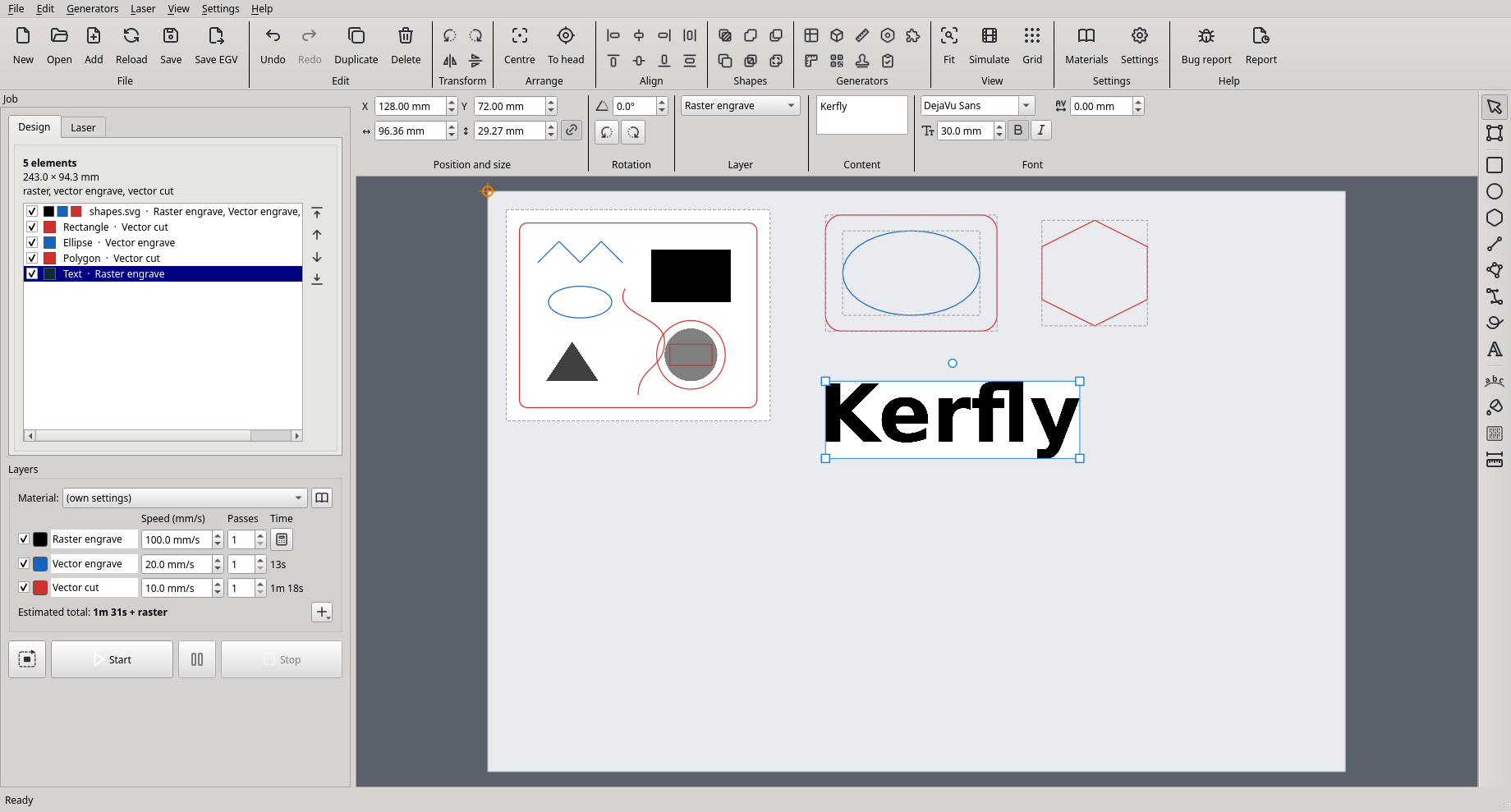
Kerfly runs K40-class CO2 lasers with Lihuiyu boards (M2 Nano family: M1, M2, M3, B1, …): the blue-and-white desktop lasers sold under many names. Draw, lay out and run your jobs in one window, from the first sketch to the cut part.
What it can do
Lay out the bed
Put several files on the laser bed, move, scale and rotate them with the mouse or by typing, align, group and stack them in order. Undo and redo everything.
Draw and edit
Rectangles, ellipses, polygons, lines, curves, freehand and text in any installed font, also along a curve or a circle. Edit the nodes of drawn shapes and of opened SVG and DXF files.
Layers like LightBurn
Raster engraving, outline engraving and cutting, each with its own speed, passes and power. A material library sets them all at once.
Many file types
SVG (with or without Inkscape), DXF, G-code, and pictures: PNG, JPG, BMP, TIFF, GIF, WebP. Projects keep everything in one file.
Patterns, hinges, bridges
Fill shapes with engraved patterns (waves, honeycomb, bricks, ...) while their outline is still cut, cut living hinges that let plywood bend, leave bridges that hold cut parts in the sheet, combine shapes.
Generators
Ready designs from a few numbers: material test, finger-joint box, kerf test, gear, puzzle, ruler, QR code, rubber stamp and a test card for the laser.
Safe to run
Trace the outline first, simulate the job, see the time. Kerfly refuses jobs that would run the head off the bed.
Your way of working
Keep the design in place on the bed and let the head drive to it, or let the design follow the head: your choice.
Your language
English, Polish, German, Spanish and French. Runs on Windows 10 / 11 (installer), Linux (AppImage, most distributions) and macOS 11 or newer (preview).
Getting started
Open the latest release and download the package for your system. No Python needed.
- Windows 10 / 11: run
Kerfly-<version>-windows-setup.exe. The installer is not signed, so Windows may say Windows protected your PC: choose More info → Run anyway. The first time, tick Install the USB driver for the K40 laser. Kerfly is then in the Start menu. - Linux: make
Kerfly-<version>-x86_64.AppImageexecutable and run it. Allow the laser's USB port once: Laser → Allow USB access for the laser… (asks for your password). - macOS (preview, not yet tested with a laser): open
Kerfly-<version>-macos-arm64.dmg(Apple Silicon) or-macos-x86_64.dmg(Intel) and drag Kerfly to Applications. It is not signed by Apple: see the installation guide for the first start. - Read the user guide: connect the laser, place a design, trace, start.
The installation guide explains each step.
Status
Kerfly 1.1 is stable and ready for everyday work with your laser. Planned next: kerf compensation (exact sizes of cut parts), round stamps with text around the circle, image tracing, more patterns, more file formats, and a Debian package with its own APT repository. See the roadmap and the changes.
Help and feedback
Found a problem? In Kerfly choose Help → Report a problem on GitHub…: it saves a diagnostic report and opens the report form. Ideas and translation fixes are welcome too, in English or Polish.